Optimize File (Tools): get your .skp lightweight for free
Smart purge, duplicate materials, texture downscaling and a component impact report. The full file cleanup, 100% local and free.
File freezing, choppy orbit, a .skp of hundreds of MB? Optimize File, in the Tools window, gives your model a full cleanup: it removes what isn't used, merges repeated materials, downscales oversized textures and shows which components weigh the most. It runs on your computer and uses no credits.
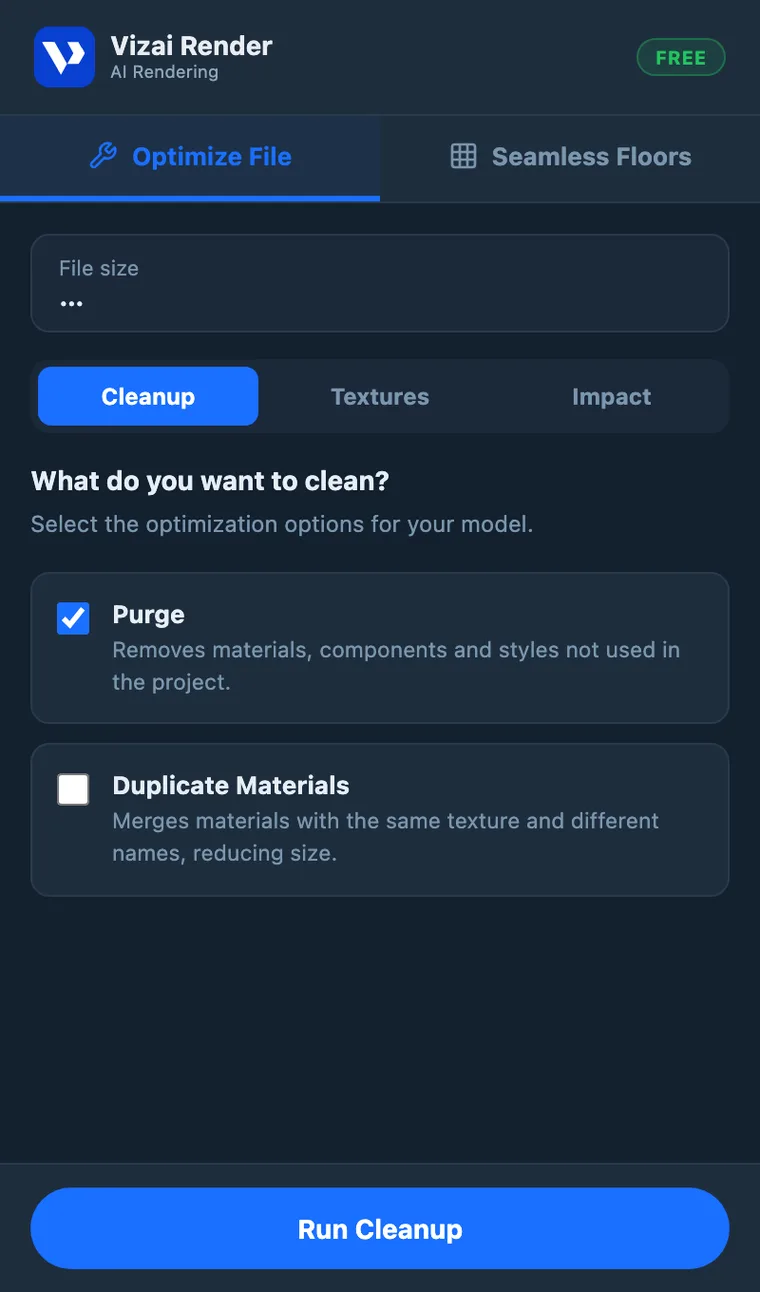
Step by step
- 1Save the file first
The size shown at the top is the size of the saved file. Save before you start so you have a starting point.
- 2Cleanup
Check what you want to clean and click Run Cleanup.
- 3Textures
Select the oversized images, pick the resolution and click Optimize Images.
- 4Impact
Click Analyze Impact and use View to find the heaviest components in the model.
- 5Save again
The plugin asks if you want to save. Once saved, the new size shows at the top, with how much you saved.
Cleanup
- Purge: removes components, materials, tags and styles that aren't used anywhere in the project. It's the cleanup that shrinks files that have been through many versions the most.
- Duplicate Materials: merges materials that use the same texture image, at the same size, under different names (Wood, Wood1, Wood-copy...), common in models assembled from blocks of many sources.
Textures
The Texture Manager lists every image in the model with its dimensions. 4K textures on a drawer handle are dead weight: select the oversized ones and downscale them to 512, 720, 1024 or 2048 px in one click. The look on screen barely changes. The file size does.
Impact
The Component Impact report shows which blocks have the most geometry (faces) and how many instances each one has. It's like finding out that a tree downloaded from 3D Warehouse has 800,000 faces and is repeated 12 times. The View button locates the component in the model so you can decide what to do.
Each cleanup is a single action in SketchUp. If you don't like the result, Ctrl+Z (Cmd+Z on Mac) undoes it all at once.
Getting the most out of the cleanup
- Start with textures in models with many downloaded blocks: that's usually where most of the weight is.
- 720 px covers most cases. Small objects don't need more; keep 1024 or 2048 px for large floors and walls.
- Before rendering large projects. A light model means a smooth screen and faster captures.
- Back up the first time. Make a copy before running heavy cleanups on an important file.
If something goes wrong
- Something you wanted disappeared: Ctrl+Z (Cmd+Z on Mac) undoes the whole cleanup.
- The size didn't change: the number at the top is the saved file's size. Save to see the new size.
- A texture got blurry: undo and downscale to a higher resolution.
Quick questions
- Does it use credits? No, everything happens on your computer.
- Can I undo it? Yes, with Ctrl+Z (Cmd+Z on Mac).
- Does it work on an unsaved file? It does, but the size only shows after the file is saved.
Ready to try it yourself?
Create your account, install the plugin and get 12 free credits on your first login.